Fixed Palette Tool
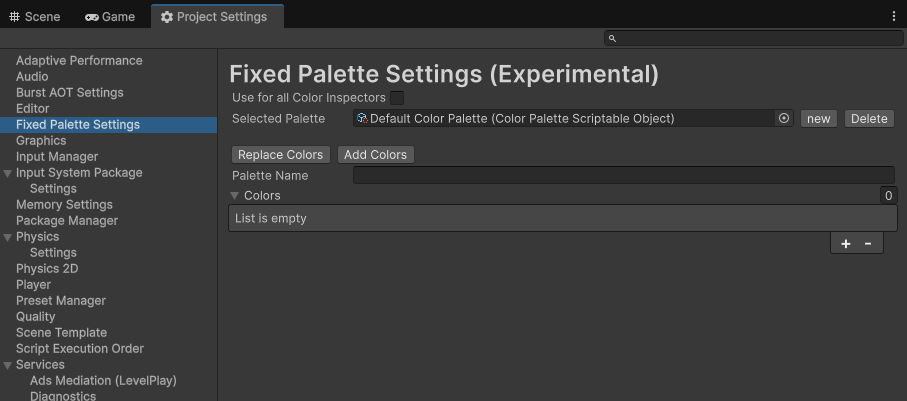
The Fixed Palette Tool can be found in the Project Settings window. Opening the Settings will generate a settings file that can be found at Assets/Settings/FixedPaletteSettings.asset. This is where all of your palettes will be stored when you are generating them.
When you are building your project, this object will also be included in the build so that you are able to retrieve the colors at runtime.
Sections
Importing Palettes
IMPORTANT
PNGs are imported by processing all of the colors found in the image. That means that if you're planning to use exports from Coolors, which include text in their images, you will need to manually remove those.
Supported Palette types are listed below. A good resource for finding palettes to import can be found at Lospec.
.png.hex
You are able to extend your existing list of colors, or create a completely new list by replacing all of your existing colors! The Names displayed will default to their hex codes when importing, however you are welcome to change these to anything more digestible once imported.
Color Types
IMPORTANT
You'll notice that you can set multiple colors as Primary. When retrieving the primary color at runtime, it will return the first in the list that has that Color Type
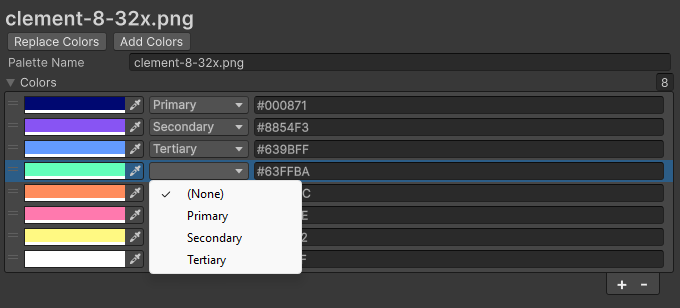
You are able to assign a color the types listed below. These are used to retrieve colors at runtime.
- Primary
- Secondary
- Tertiary
Picking a Color
[FixedPalette] Attribute
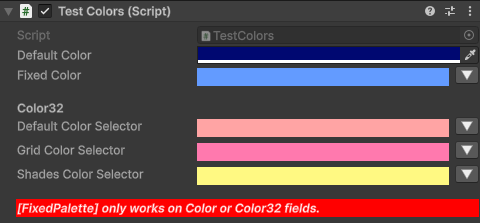
To ensure that you are able to utilize the color palette functionality, you will need to add the [FixedPalette] over any Color or Color32 property in your MonoBehaviour.
 [SerializeField, FixedPalette]
 private Color fixedColor;

  [SerializeField, FixedPalette]
 private Color32 fixedColor32;
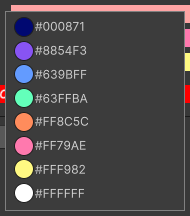
You are also able to change how the Color Selection window displays your palette by adding COLOR_SELECT as a parameter.
COLOR_SELECT.DEFAULT
[SerializeField, FixedPalette]
private Color32 defaultColorSelector;
This is the default value of the optional parameter. This will include the color swatch & the name.
COLOR_SELECT.GRID
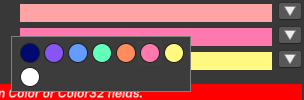
[SerializeField, FixedPalette(COLOR_SELECT.grid)]
private Color32 gridColorSelector;
This display version will exclude the label, and place all of your swatches in a grid.
COLOR_SELECT.SHADES
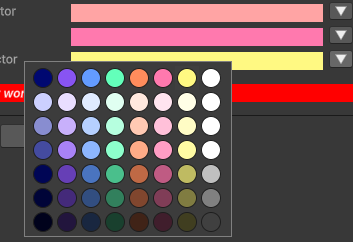
[SerializeField, FixedPalette(COLOR_SELECT.shades)]
private Color32 shadesColorSelector;
This is a more unique display type, as it will take the colors found in the palette & provide differt version of those colors that range from desaturated to devalued, providing some shading options within the range of the specified colors.
Finding Colors at Runtime
Since the selected color palette is included with the build, you are able to access its values at runtime. To access them you will need to use the PaletteUtility class, which includes the following properties
Color PrimaryColor SecondaryColor TertiaryColor32 Primary32Color32 Secondary32Color32 Tertiary32int ColorCount
The following functions are also available:
Color32 GetColor(COLOR colorType)Color32 GetColorAtIndex(int index)
Example
private IEnumerator ColorExampleCoroutine()
{
    var mat = targetRenderer.material;
    var count = PaletteUtility.ColorCount;
    while (true)
    {
        for (int i = 0; i < count; i++)
        {
            mat.color = PaletteUtility.GetColorAtIndex(i);
            yield return new WaitForSeconds(1f);
        }
    }
}